Hunting Bag FAQ
+ How does the Game Dial work?
+ How do I backup my hunts and settings?
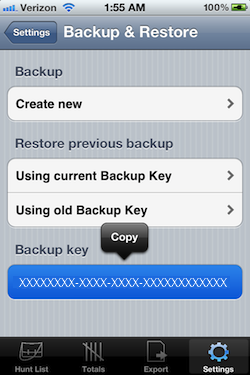
To create a backup, navigate to the Settings tab and click on "Backup & Restore". Then select the "Create new" button to bring up the main backup view and click the "Backup" button to initiate. An alert will pop up when the backup is complete.
+ What is the best way to migrate my hunts to a different device?
Apple offers two ways to move data from one device to another: iTunes and iCloud. These are the
only two options that can transfer both your hunt data and photos to a new device.
iTunes
- Connect the device you want to backup to iTunes
- Right-click or Ctrl-click on the device name in the left panel
- Select the Backup option
- When the backup is complete, connect the new device to iTunes
- If the new device was never synced to iTunes you should get prompted to restore
- Otherwise Right-click or Ctrl-click on the new device in iTunes left panel and click the restore option
- Select the latest backup of the original device with your hunting data
- Confirm that all the hunts and images have been transferred correctly
- Uninstall the app from the original device
iCloud (IOS5+)
- Navigate to the iCloud backup menu on your original device: Settings->iCloud->Storage & Backup
- Click 'Manage Storage', select your device, and verify that backups for Hunting Bag are enabled
- Click the 'Backup Now' option
- When the backup is complete, turn on your new device (or a device that has been reset)
- Choose the Restore from iCloud option
- Follow the prompts and be sure to fill out the same iCloud information as your original device
- When the process is complete, verify that all the hunt data and photos have been transferred
- Uninstall the app from the original device
+ What is a Backup Key and how can it be used?
The Backup Key is an alpha-numeric code that identifies your backed up settings and can be used to restore hunts back to your device if your app is uninstalled or data is erased.
Be sure to save your
Backup Key by copying it and saving it someplace, like emailing it to yourself.
Navigate to the Settings tab and select "Backup & Restore". Click on "Use old Backup Key" and you will be prompted to enter the Backup Key. Enter the saved Backup Key and click "Restore". Note: Doing a restore will delete your current hunts and settings and replace them with the hunts and settings from the backup. Your photos will not be restored using this process
+ I did a restore and I don't see any change. Why is that?
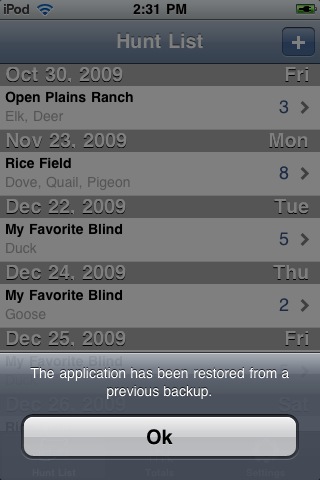
You need to restart the app in order for the restore to take effect. Once the app is restarted a
message will be displayed notifying you that the restored data is now in use.
+ I am looking for an animal that is not on the "Game Dial". How can I add new game to the dial?
+ Can I delete or modify locations, seasons, and firearms without deleting my hunts?
Yes. If you modify a location, season, or firearm the changes will be carried over to all of your hunts. If you delete any of these settings your hunts will still remain with the original setting.